
What Makes JForex4 Stand Out
JForex4 is a sophisticated trading platform developed by Dukascopy Bank that bridges the gap between accessibility and professional-grade functionality. Whether you’re a novice trader testing your first strategies or a seasoned professional running complex algorithmic systems, this platform provides the tools necessary for success.
The platform distinguishes itself through several critical advantages. Unlike many competitors that force users to choose between simplicity and power, JForex allows you to scale your approach. You can start with straightforward manual trading, progress to semi-automated systems, or dive into full algorithmic trading using Java-based custom strategies. The built-in development environment means you don’t need external coding tools – everything happens within one integrated workspace.
Key Features That Matter
- Direct market access to institutional-grade liquidity pools
- Java-based strategy development with unlimited customization potential
- 250+ technical indicators covering every analytical approach from basic to exotic
- Tick-by-tick backtesting against years of historical market data
- Multi-platform support spanning Windows, macOS, and Linux
- Micro-lot trading capability starting from just 0.001 lots (1,000 units)
Hardware and System Requirements
Before beginning installation, verify your system meets these specifications:
Operating System Requirements
JForex4 exclusively supports 64-bit systems. If your computer runs a 32-bit operating system, hardware upgrading becomes necessary. The platform operates smoothly across current versions of Windows, macOS, and Linux, though performance improves significantly on systems with robust processing capability.
RAM and Storage Needs
While the installation footprint measures only approximately 275MB, expect the total system impact to grow as you accumulate historical price data and develop custom strategies. Allocate at least 1GB of available RAM for comfortable operation, with additional capacity beneficial if you plan running multiple charts simultaneously or executing intensive backtesting operations.
The platform includes a feature limiting maximum RAM consumption, defaulting to 768MB but adjustable upward if your system has available resources. An SSD significantly outperforms traditional hard drives for the read/write operations JForex performs constantly.
Internet and Network Considerations
Connection quality matters far more than raw download speed. A reliable, stable internet link takes priority over bandwidth. JForex will auto-configure optimal server connections in most scenarios, though network instability occasionally requires manual proxy configuration.
Java 21 comes pre-packaged with the installer, eliminating the need to download and install Java separately – a convenience that streamlines the entire setup process.
Downloading and Choosing Your Version
Dukascopy provides three distinct access methods, each optimized for specific use cases:
Desktop Application
The full-featured desktop application represents the complete JForex experience. Install it directly on your computer and access everything the platform offers: advanced charting, strategy development, historical data analysis, and comprehensive risk management tools. This version provides the fastest performance and richest feature set.
Web Platform
The web-based version runs directly in your browser without requiring installation. You get the essential trading functionality and charting capabilities while maintaining flexibility to access your account from any internet-connected device. This approach works perfectly for traders who move between computers frequently or prefer cloud-based accessibility.
Mobile Applications
iOS and Android applications focus on what traders actually need while mobile: position monitoring, quick trade execution, price alerts, and account overview. Rather than attempting to replicate desktop complexity on a smartphone, mobile apps concentrate on practical functionality you’ll actually use while away from your primary trading setup.
All three versions maintain complete synchronization with your account, so strategies developed on desktop automatically sync with your web access and mobile alerts.
Installation Across Different Operating Systems
Windows Installation Process
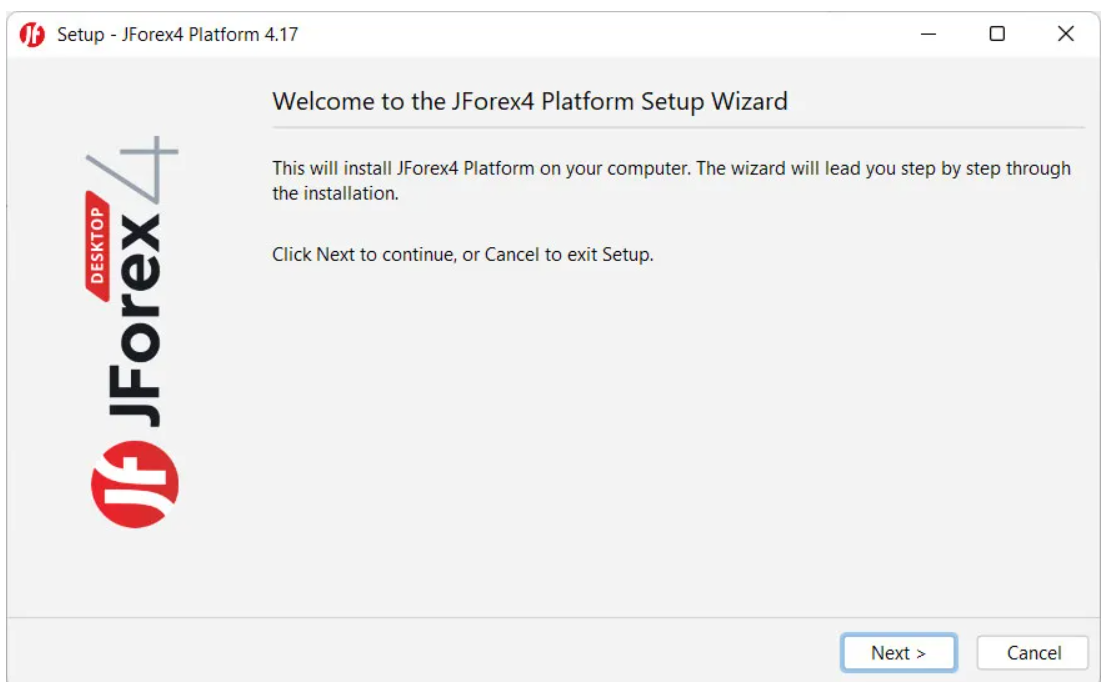
Launching the JForex-Setup.exe file begins the installation wizard. Accept the license terms and select your installation directory (Program Files works fine for most users). The installer copies all necessary files including the Java runtime environment. When installation completes, you have the option to launch JForex immediately.
The entire process typically requires just two to three minutes depending on your system speed. Creating desktop and Start menu shortcuts provides convenient quick-access points.
macOS Installation Steps
Mac users download a DMG file containing the JForex application. Opening the DMG reveals the application icon alongside an Applications folder shortcut. Simply drag the JForex icon onto the Applications folder to complete installation.
On first launch, macOS Gatekeeper displays a security warning since the application wasn’t obtained through the App Store. Right-click the JForex icon and select “Open,” then confirm in the security dialog. This one-time step is normal for third-party applications on macOS. Subsequent launches proceed without warnings.
Linux Installation
Linux users execute a shell script installer. After downloading, open a terminal in the download directory and run these commands:
chmod +x JForex-Installer.sh
./JForex-Installer.sh
The terminal-based installer guides you through directory selection and shortcut creation preferences.
Troubleshooting Common Installation Issues
Insufficient permissions typically cause installation failures on multi-user systems. Running the installer as administrator on Windows or using sudo on Linux resolves access restrictions. Corrupted downloads occasionally prevent successful installation—delete and re-download the file if the installer refuses to execute. Dukascopy’s support team can assist with persistent technical difficulties.
Getting Started: Your First Login
Opening JForex for the First Time
When you launch JForex for the first time, the platform initializes default settings before presenting the login screen. You’ll see options to connect using either a demo account or a live trading account.
Demo vs. Live Account Access
Demo accounts provide sandboxed trading environments with virtual capital, typically starting balances between $1,000 and $1,000,000. These accounts connect to real market data including actual price movements and market spreads, making them ideal for strategy testing without financial risk.
Experienced traders frequently use demo accounts for evaluating new trading approaches, testing unfamiliar currency pairs, or familiarizing themselves with platform features before risking real capital. Demo accounts remain active for 14 days by default, though this can be extended.
Live accounts require completing Dukascopy’s account opening procedures, including identity verification and minimum funding. Once activated, your live account displays actual balances and positions. The interface remains consistent between demo and live environments, ensuring your transition to real money trading involves no learning curve.
Understanding the JForex Interface
The interface uses a modular design supporting customization according to your preferences. The central workspace displays charts, while the left sidebar shows your watchlist of instruments. The bottom panel reveals your positions, pending orders, and trade history.
Key interface areas include:
- Menu bar – Organized access to Reports, News, Services, View, Settings, and Help functions
- Toolbar – Quick-access buttons for common operations
- Instruments panel – Complete list of tradeable assets with customizable favorites
- Chart area – Central workspace supporting multiple simultaneous charts with linking options
- Bottom tabs – Switch between Positions view, Orders display, and Messages notifications
Charts can detach into separate windows, perfect for multi-monitor setups. Right-clicking any instrument brings up context menus with charting and ordering options.
Essential Configuration Steps
Begin by accessing Preferences through the Settings menu:
General Settings
Configure your time zone to ensure all timestamps reflect your location. This becomes critical when trading around specific economic events or market session openings.
Trading Configuration
Set your default order type, preferred lot size, and whether to enable one-click trading. One-click execution accelerates order placement but removes confirmation dialogs—use cautiously.
Network Settings
JForex typically auto-configures optimal server connections. If you experience disconnections, verify network settings and proxy configuration if required.
Notifications and Alerts
Enable sound alerts to receive audio notifications when prices reach specified levels or important events occur. This prevents missing trading opportunities while working on other tasks.
Workspace Management
Enable automatic workspace saving to preserve your layout, chart arrangements, and settings between sessions.
Placing Your First Trade
Opening your first trade follows a straightforward process:
- Select an instrument – EUR/USD, GBP/USD, or USD/JPY work well for beginners due to their high liquidity and tight spreads
- Choose order type – Market orders execute immediately; pending orders wait for specific price levels
- Select direction – Buy if you expect prices to rise, Sell if anticipating a decline
- Determine position size – Specify quantity in units, thousands, millions, or lots
- Set risk management – Use stop losses to cap potential losses and take profits to lock in gains
- Apply 2:1 ratio – Set take profit targets twice as far from entry as your stop loss
- Review and submit – Double-check all parameters before executing
Your position appears in the Positions tab with real-time profit/loss updates as markets move.
Advanced Features Worth Exploring
Technical Analysis Arsenal
Access over 250 technical indicators ranging from standard moving averages and RSI to sophisticated oscillators. Layer multiple indicators on single charts and save favorite combinations as templates.
Strategy Backtesting
Test strategies against years of historical data through the integrated Strategy Tester. The system produces detailed performance reports including profit factors, drawdown analysis, and win rates. Backtesting builds confidence before deploying capital.
Market Depth Analysis
The order book display reveals pending orders at various price levels, showing market structure and liquidity concentration points. This transparency helps identify support and resistance areas.
Economic Calendar Integration
View economic releases directly on your charts with forecasts versus actual figures for major economic indicators.
Price Alerts and Notifications
Configure alerts for specified price levels across any instruments, ensuring you won’t miss critical opportunities.
Frequently Asked Questions
How much space does JForex require?
Installation requires approximately 275MB. However, as you accumulate historical data and develop strategies, the cache folder grows substantially. Control cache location through Preferences/Paths settings.
Can I use multiple devices with one account?
Yes, install JForex on multiple computers and access them with the same credentials. Your layouts, chart objects, positions, and settings synchronize automatically across all devices.
Does JForex work with just a demo account?
Absolutely. Demo accounts provide complete access to all platform features—advanced charting, 250+ indicators, automated trading, and strategy testing—with zero financial commitment.
What is the minimum trade size?
The minimum position is 0.001 lots, equivalent to 1,000 units of the base currency (one micro lot). This low threshold makes position sizing flexible for conservative risk management.
What advantages does JForex offer over competitors?
JForex excels through tick-by-tick backtesting accuracy, Java-based automation without external tools, 250+ technical indicators, true cross-platform compatibility, direct access to Dukascopy’s liquidity, and micro-lot flexibility—all combining to deliver professional functionality at all experience levels.
Getting Help and Support
Dukascopy provides comprehensive support through multiple channels:
- Official Wiki – Extensive documentation and tutorials
- Video Tutorials – Visual guides for platform features
- Support Forum – Community assistance and official support responses
- Webinars – Regular educational sessions from professional traders
Complete guide to installing and configuring JForex.
Conclusion
JForex4 transforms from installation to productive trading platform in just minutes. Whether you’re testing initial strategies on a risk-free demo account or executing sophisticated automated systems with real capital, the platform scales with your expertise and ambitions. The combination of institutional-grade tools, accessibility for beginners, and comprehensive educational resources creates an environment supporting traders at every experience level.
More Stories
ACR Poker: Navigating Bitcoin Swings and the Poker Mindset
6 Token Launch Mistakes That Could Cost You Big Time
On-Ramps, Off-Ramps, and the Philosophy of Access in Bitcoin